Guide
How to check an ElevenLabs voiceover against your script
Find the lines that need another take, without starting the whole recording again.
I built Proof Take because checking my own voiceovers against a script took too much listening and note-taking. With an AI voice, the job is still there: a take can sound smooth while a small word changes the meaning. A pleasant voice is easy to keep listening to. That doesn't mean every word matches.
If you make videos, tutorials or product demos with ElevenLabs or another text-to-speech tool, this is the check I'd do before putting the voiceover into the edit. Keep the script beside the exported audio, find the passages that need attention, and regenerate those lines in your TTS tool. The aim is to keep the parts you've already approved.
Start with the script you meant to hear
Use the final script, including any deliberate wording changes made before generation. Comparing a revised take with an old draft creates a list of differences you already know about. Keep that reference separate from any version where you've written numbers out or changed spellings to guide the voice.
For Proof Take, you need an Apple silicon Mac running macOS 14 or later. Paste the script, or import TXT, DOCX, PDF or HTML; bring the audio as WAV, MP3 or M4A. Recognition, comparison and review run on the Mac. Your script and audio are never uploaded by Proof Take. That describes this checking step, separately from how you generate the voice.
Listen for missing and extra words
Start with long sentences, especially ones with a condition or a list near the end. A swallowed word may be hard to hear; a skipped word may leave a sentence that still sounds natural. Listen around words such as not, only, before and after. Losing one can change the instruction while leaving the delivery convincing.
For example, “Use this setting only after the upload finishes” is different from “Use this setting after the upload finishes.” When you review a mark, hear the whole sentence rather than just the highlighted word.
Extra or hallucinated words deserve the same attention. A take might repeat a phrase or include wording the script never contained. Decide whether the addition is acceptable before keeping it. If it changes a promise, a safety instruction or a product claim, a fluent delivery doesn't make it harmless.
Give numbers and abbreviations a separate pass
Before listening, note how each important number should be spoken. Does “2026” mean a year, or a code read digit by digit? Is “03/04” March fourth or April third? Does “$24.50” need the cents? An ambiguous script cannot tell a voice, or a reviewer, which reading you intended.
Check prices, dates and units against the meaning, not just the characters. Listen for the currency, decimal point, negative sign and unit. “Five milligrams” and “five grams” are different instructions. For abbreviations and acronyms, decide whether you want individual letters, a word, or the expanded phrase.
Proof Take compares recognized words with the script; it isn't a guarantee that every number was delivered as intended. The recognizer may represent speech differently from the printed number. A flagged difference can be harmless, and an unflagged number still needs your attention when the reading matters.
Check homographs and names by ear
“I read the report yesterday” and “I read the report every morning” use the same spelling with different sounds. So do “a live broadcast” and “we live nearby.” A word comparison may show a match even when the voice chose the wrong reading. Listen to those passages deliberately.
Do the same for names, brands and unfamiliar terms. Write down the intended pronunciation for your own reference, then listen in context. Proof Take does not judge tone, emotion, pacing or pronunciation quality. It gives you possible word differences to investigate; it cannot certify a name or a homograph just because the recognized text matches.

Keep the check short; make the fix list specific
Import the script and take into Proof Take and run a check. Listen to the marked passages and confirm the differences that actually need fixing. For the detailed controls, mark types and export steps, use the full voiceover checking guide.
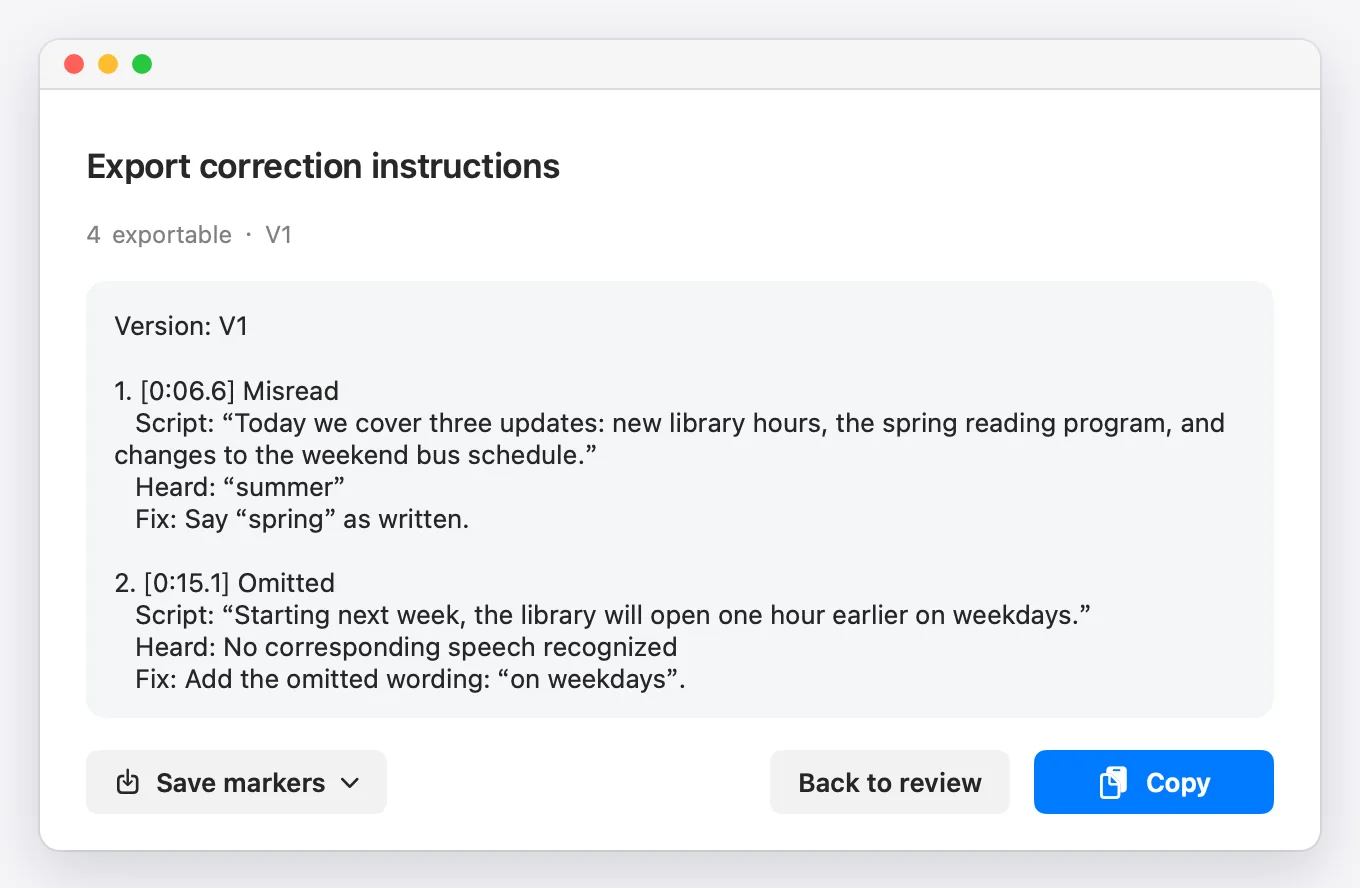
Export the confirmed issues as a fix list. Each entry gives you a timestamp, the script sentence for context, what was heard and a fix. That keeps the evidence beside the requested correction instead of leaving you with a vague note such as “something went wrong near the end.”
Here's an illustrative entry in that format:
Version: V1

1. [0:24.3] Misread
   Script: "The offer ends on Friday."
   Heard: "Monday"
   Fix: Say "Friday" as written.
The timestamp finds the place in your assembled take; the script sentence identifies the wording to regenerate. “Heard” explains the mismatch, and “Fix” states the correction. Keep any pronunciation instructions separate and explicit: a text match alone won't tell your TTS tool how you want a name spoken.
Regenerate the broken lines, then check the joins
I prefer to keep an approved passage and replace the line that needs work. Regenerating the whole take gives you a whole new recording to review, including sections you were happy with. A replacement can also sound different from its neighbours, so choose enough context to make a usable edit.
For each confirmed item, regenerate that line in ElevenLabs or your TTS tool. Use your usual audio editor to put the replacement into the take, then listen across both joins. Check that no word was clipped or doubled. Tone and pacing across the join still need your ears; the fix list is a guide to the wording, not an audio editing instruction that Proof Take carries out.
If you work with timeline markers, Proof Take can also export markers for Adobe Audition, REAPER and Pro Tools. Choose the fix list when you need the correction in words, or markers when you need locations in your editing workflow.
Re-check the regenerated take as V2
Export the assembled replacement take and import it into the same project as V2. Re-check it against the script, listen to the corrected passages, and review any new differences. Edits can move timestamps, so don't use the V1 time as proof that you've checked the right place in V2.
A matching transcript is useful evidence, but the final decision is still yours. Hear the repaired line and its context before calling it finished, especially for numbers, names and ambiguous words.

Questions
Does this work with TTS tools other than ElevenLabs?
Yes. Proof Take checks an audio file against a script. Bring a WAV, MP3 or M4A file from your TTS workflow; the checking step doesn't depend on a specific voice provider.
Will it catch every pronunciation mistake?
No. It compares recognized words with the script and does not judge pronunciation quality, tone, emotion or pacing. Listen separately to names, homographs and important numbers, even when the text matches.
Are my script and audio uploaded during the check?
No. Recognition, comparison and review run locally on your Mac. Proof Take never uploads your script or audio.
Which languages can I check?
English and Chinese scripts. Mixed English–Chinese speech is still being tested.
Can I try it before buying?
Yes. The 14-day free trial starts with your first check and includes all features. After that, Proof Take costs US$29 once, with all future updates included, for up to two Macs. You can get a full refund within 14 days of purchase.