Guide
How to check a voiceover against its script
Without listening to the whole take twice.
I make my own videos. For each one, the voiceover had to match the script. The only way I knew to check was to play the whole take with the script open, follow along word by word, and pause to note a timestamp whenever something sounded off. Then I had to fix the mistakes and play the whole new take again to make sure the fixes landed and nothing new slipped in. Every round took a long time, and my attention drifted long before the end.
This guide shows the faster way I use now, with Proof Take, a Mac app I built for exactly this job. It works for your own recordings, narration you've hired someone to record, and AI voiceovers or text-to-speech.
Using an AI voice? The ElevenLabs and TTS checking guide covers missing words, numbers, names and regenerating only the lines that need work.
What you need
- A Mac with Apple silicon, running macOS 14 or later.
- The script: paste it, or import a TXT, DOCX, PDF, or HTML file.
- The take: one WAV, MP3, or M4A file.
- Proof Take. The free trial runs 14 days from your first check, with every feature.
Everything below runs on your Mac. The script and the audio are never uploaded.
1Import the script and the take
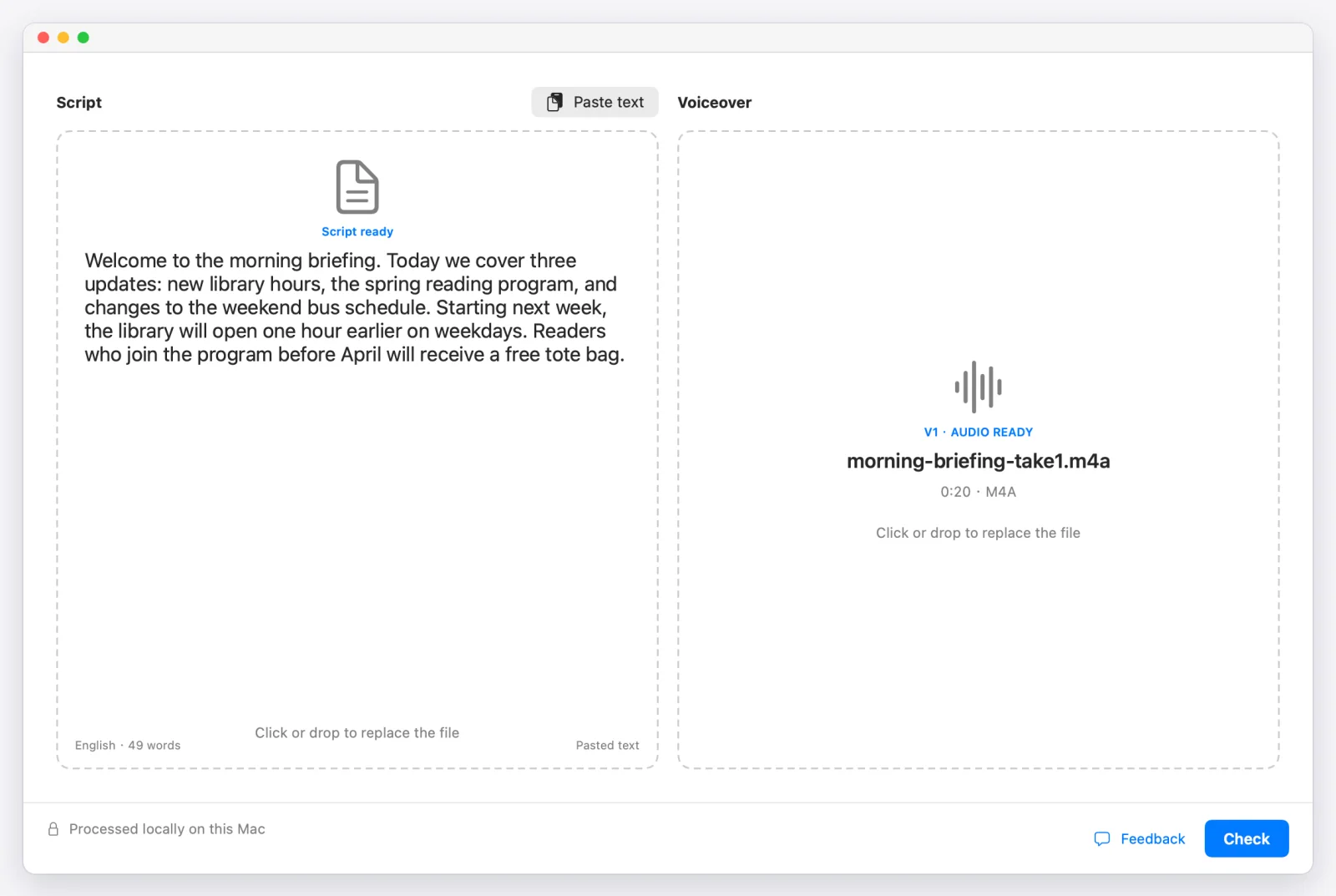
Open Proof Take. The window has two drop areas: the script on the left, the audio on the right. Drop in both files (or paste the script), then click Check.
Proof Take transcribes the audio and aligns the transcript with your script. How long that takes depends on the length of the take and your Mac. You'll see progress while it works, and you can cancel at any time.
2Read the marks in the script
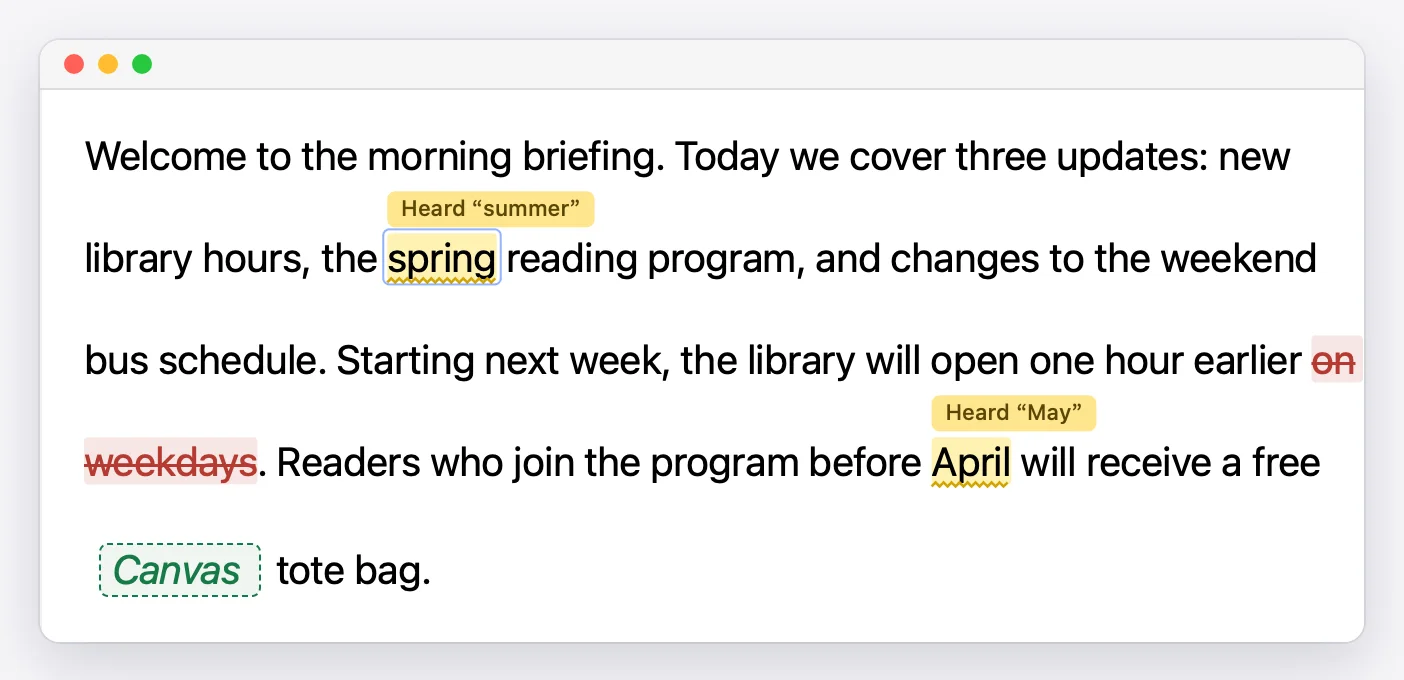
When the check finishes, your full script stays on screen exactly as you wrote it. Places where the audio seems to differ are marked inline:
- Misread: the word gets a yellow wavy underline, with what was heard shown above it—for example, Heard "summer" over spring.
- Skipped: words with no matching speech are struck through in red. The text stays in your script; the strikethrough only shows it wasn't heard.
- Extra: words that were said but aren't in the script appear in a green dashed box where they were spoken. They're never added to your script.
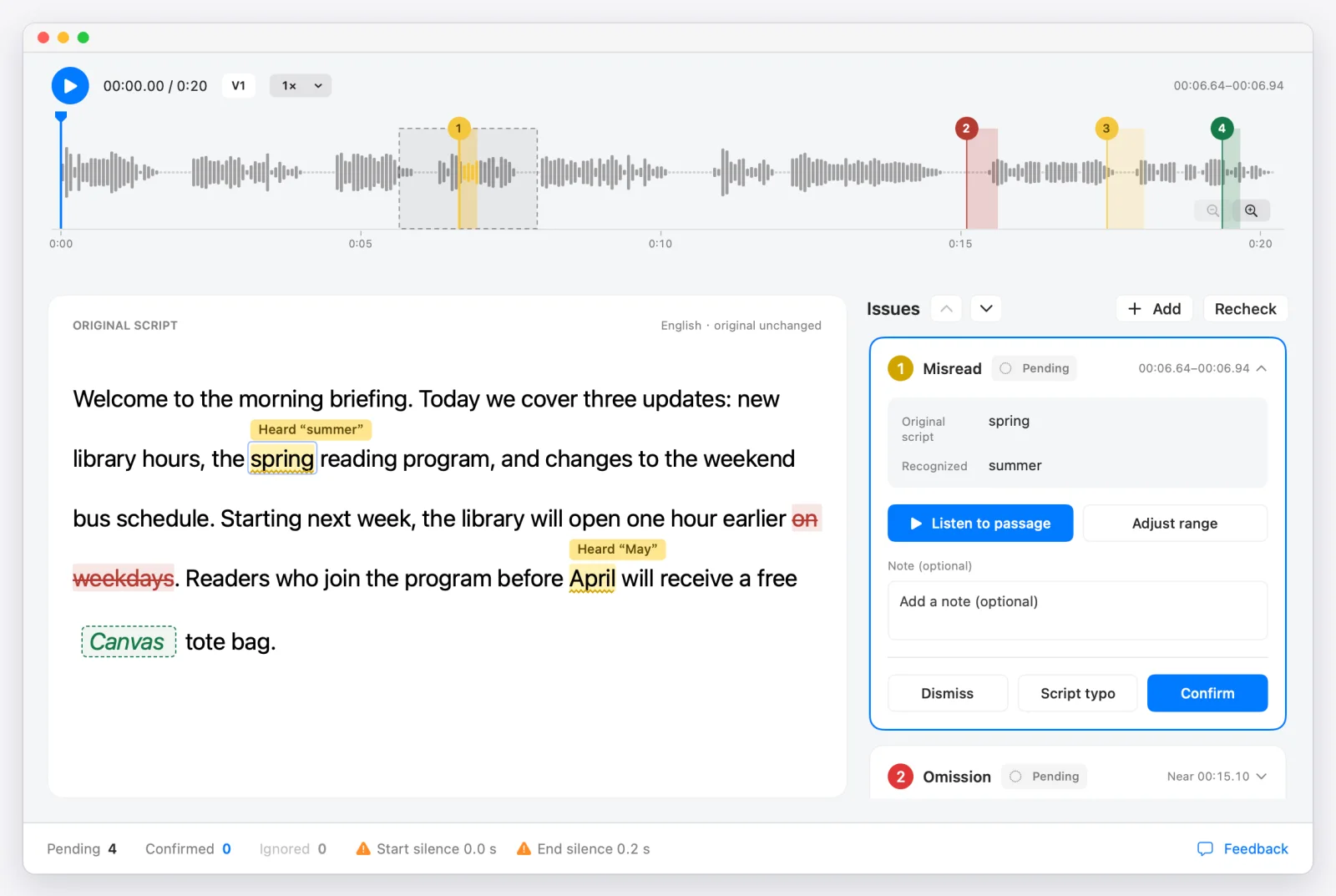
Each mark is numbered. The same numbers sit on the waveform above and in the issue list on the right, so you can see at a glance where the problems are in the take.
A note on what this does and doesn't catch: Proof Take compares the words it recognizes with the words in your script. It doesn't judge tone, emotion, pacing, or audio quality. A word recognized correctly can still be pronounced in a way you don't like. Treat the marks as a short list of places to listen, not a final verdict.
3Listen and decide
Click any mark in the script, on the waveform, or in the list. The issue card opens with what the script says and what was heard. Click Listen to passage to hear that spot with about a second of context on either side. Playback stops on its own.
Then decide:
- Confirm if it really is a mistake that needs fixing.
- Dismiss if it's a false alarm. You can undo this.
- Script typo if the audio is right and the script is wrong.
If you need to hear more or less around a mark, use Adjust range. Playback runs at 0.75× to 2× while keeping the pitch, which helps on long takes. If you hear a problem that wasn't flagged, select the words in the script and add it yourself with + Add issue.
4Hand off the fixes
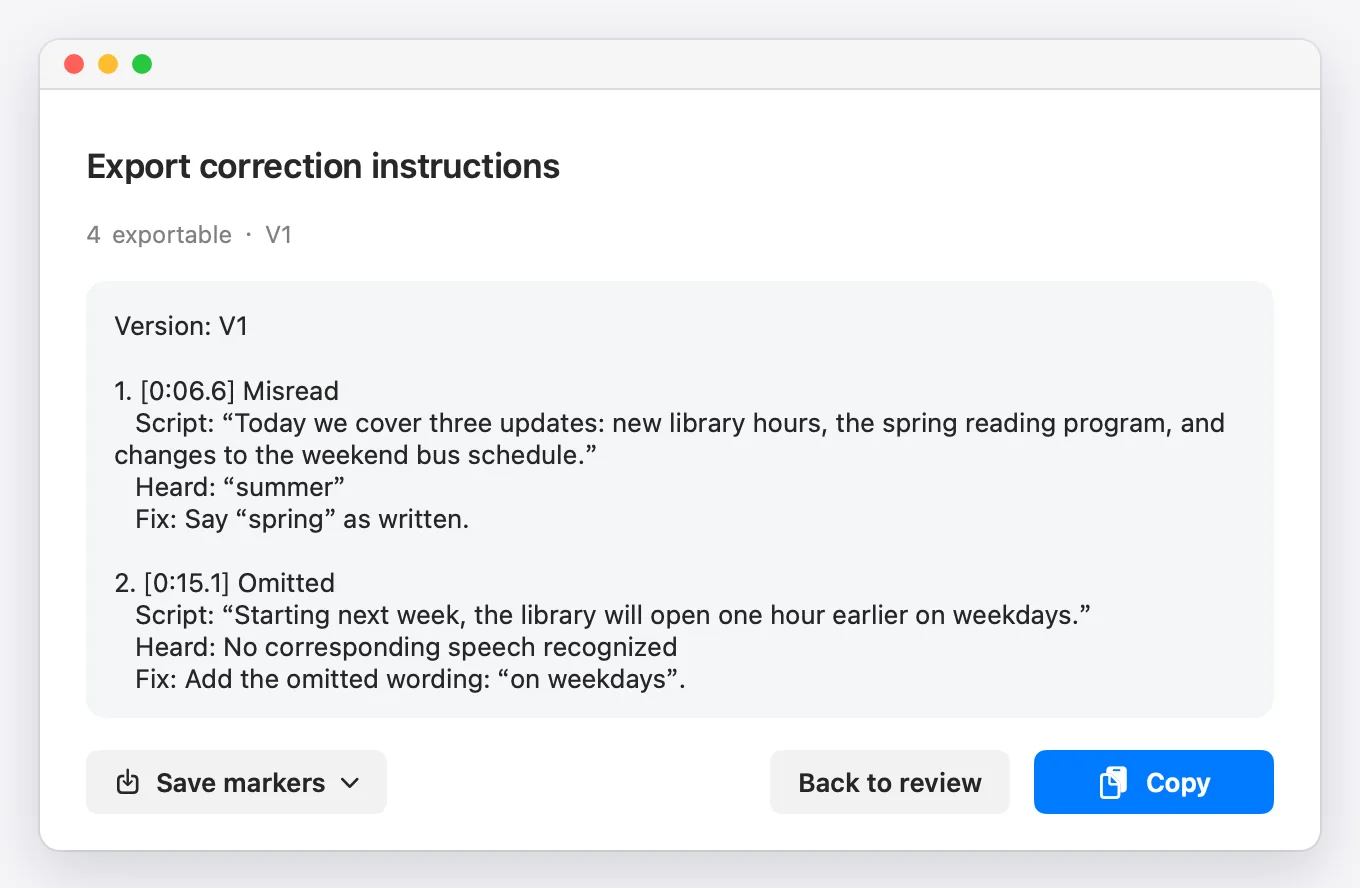
Click Export. Proof Take builds a fix list from the issues you confirmed, and only those. Each item has a timestamp, the script sentence for context, what was heard, and the fix:
Version: V1

1. [0:06.6] Misread
   Script: "Today we cover three updates: new library hours, the spring reading program, and changes to the weekend bus schedule."
   Heard: "summer"
   Fix: Say "spring" as written.

2. [0:15.1] Omitted
   Script: "Starting next week, the library will open one hour earlier on weekdays."
   Heard: No corresponding speech recognized
   Fix: Add the omitted wording: "on weekdays".
Copy it and send it wherever the fix happens. I paste it into the AI voice tool and regenerate those lines, or re-record them myself. If you're sending the list to a narrator or an editor, it's clear enough to act on without a call. Working in a DAW? Save markers writes a marker file for Adobe Audition, REAPER, or Pro Tools instead.
5Re-check the fixed take
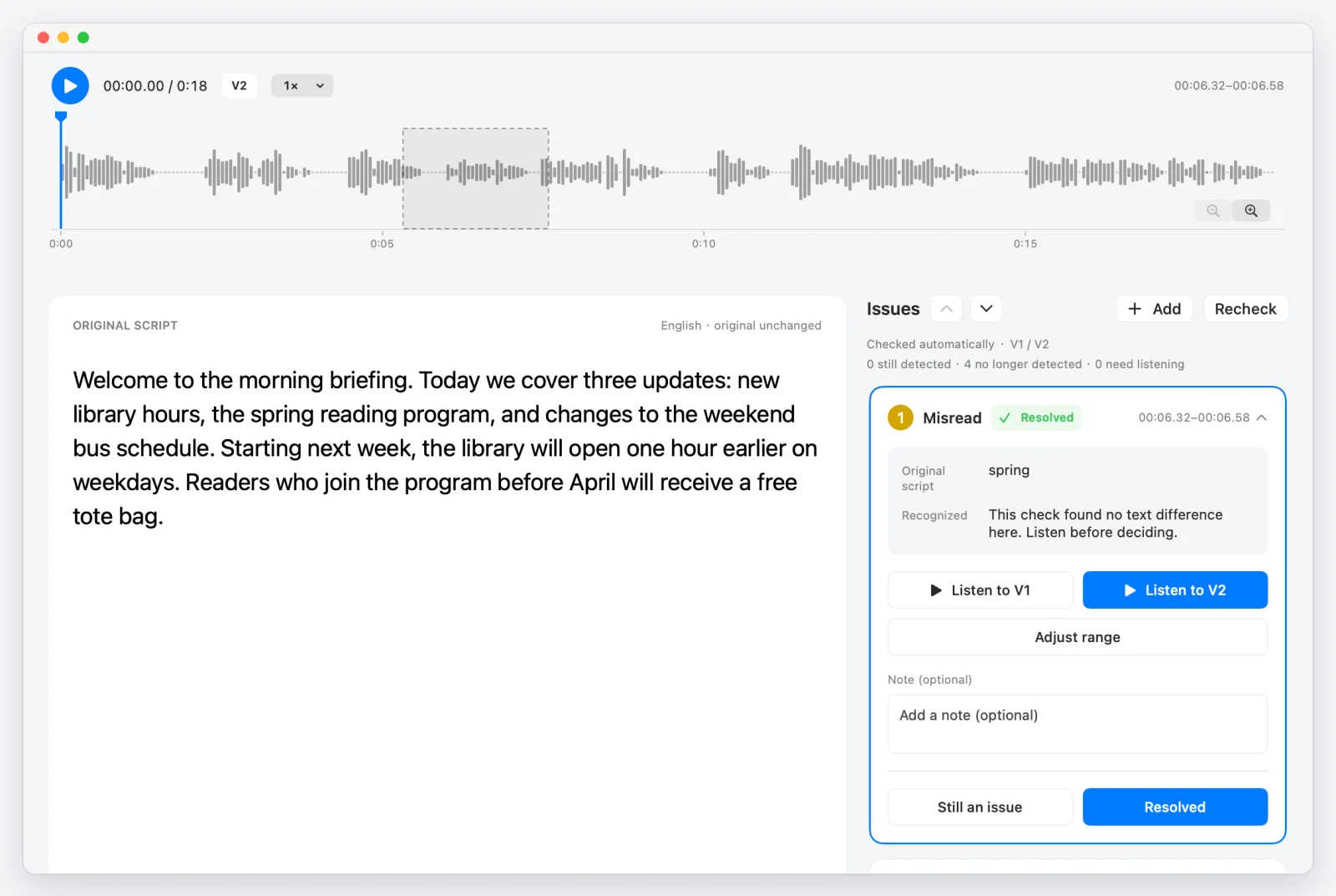
When the new take comes back, import it into the same project as V2. Proof Take checks the whole take again, so it can also flag new problems the fix introduced, and links the issues you were tracking to their new positions in V2.
For each one, play the V1 and V2 versions of that spot and mark it Resolved or Still an issue. You listen to the spots you were tracking, not the whole take again. V1 and its decisions stay in the project, so you can go back at any time.
For audiobook narrators
Two things that help with books:
- One chapter from a whole manuscript. Import the full manuscript and a single chapter's audio. Proof Take finds the passage that matches the audio, checks only that part, and dims the rest so the other chapters aren't reported as skipped.
- Room tone at the start and end. ACX recommends 1 to 5 seconds of room tone at the head and tail of each file. Proof Take measures both and shows them at the bottom of the window, with a warning icon when either is out of range. Click to hear just that edge.
Questions
Is my audio uploaded anywhere?
No. Recognition, comparison, and review all run on your Mac. The network is only used for license checks, updates, and diagnostics or feedback you choose to send.
Does it work with AI voices and text-to-speech?
Yes. Proof Take only needs the audio file, so it works the same for a human recording and for audio from an AI voice tool.
Which languages does it support?
English and Chinese scripts. Mixed English–Chinese speech is still being tested.
Does it run on Intel Macs?
No. It needs a Mac with Apple silicon and macOS 14 or later.
How much does it cost?
The free trial runs 14 days from your first check, with every feature. After that, it's a one-time US$29 with all future updates included, on up to two Macs. If it doesn't work for you, you can get a full refund within 14 days of purchase.